

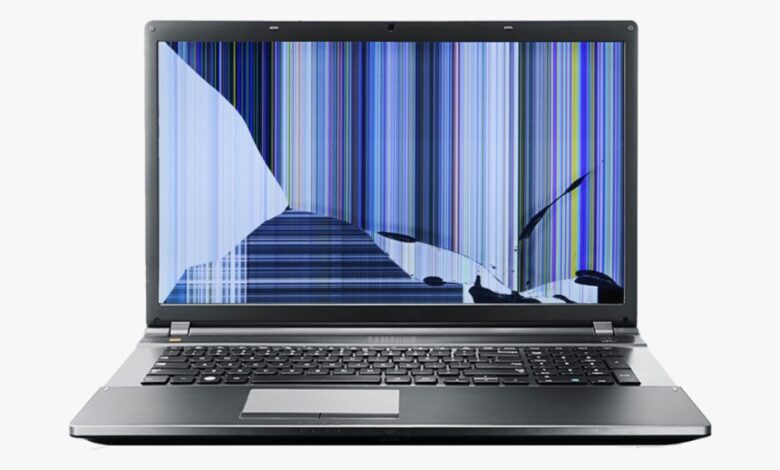
This step-by-step guide approaching to resolving issues involving a broken laptop screen. Here, we address all the possible solutions to help you troubleshoot and fix the problem, How to Fix a Broken Laptop Screen, efficiently. If your display begins functioning correctly at any stage, you may discontinue the process. However, if the fault persists, please proceed through the following solutions to effectively repair your broken laptop screen.
Article Outline
- 1 How to Fix a Broken Laptop Screen
How to Fix a Broken Laptop Screen
Before diving deeper into the repair process, it is essential to understand the various factors that can compromise display integrity. While some issues are physical, others are internal; identifying the root cause is the first step toward a successful resolution. Common technical failures that may mimic the symptoms of a broken laptop screen include:
- Stuck or Dead Pixels: Individual pixels that fail to change color, often appearing as persistent bright or dark spots on the display.
- Thermal Stress and Screen Burn-In: Prolonged exposure to high temperatures or static images can lead to “ghosting,” where faint outlines of previous visuals remain visible.
- Backlight Malfunctions: A failure in the display’s lighting system that results in a dim or completely dark image, even if the liquid crystals are functioning.
- Degraded Cables and Connectors: Substandard, aged, or loosely seated internal cables that disrupt the data flow between the motherboard and the screen.
-
Outdated or Corrupted Drivers: Software inconsistencies that prevent the operating system from communicating effectively with the graphics hardware.
Understanding these variables ensures you can accurately diagnose whether your device requires a simple software adjustment or a complete physical overhaul of your broken laptop screen.
Related: Laptop Screen Repair Guide
1. Reboot and Restart
Well, before moving towards any other issue, you must understand that the technical glitches within the operating system can occasionally cause a display to appear nonfunctional, mimicking the symptoms of a broken laptop screen. As a primary troubleshooting measure, perform a full system restart. This simple reboot can clear temporary software conflicts and restore display functionality. If the issue is resolved after the restart, no further action is required; otherwise, proceed to the subsequent hardware diagnostics.
2. Update Video Card Driver
A common catalyst for display irregularities is the presence of obsolete or corrupted video card drivers, which can often be misidentified as a hardware-related broken laptop screen. Before proceeding to more intensive repairs, verify the status of your graphics adapters and install any pending updates. Ensuring your drivers are current is a critical diagnostic step that frequently resolves performance issues and restores visual integrity.
3. External Monitor and Power State Verification
If your laptop display remains unresponsive, connect an external monitor to isolate the source of the failure. Should the external screen fail to receive a signal, the device may simply be stuck in a deep sleep or hibernation state rather than suffering from a broken laptop screen. Ensure the system is fully awakened from hibernation before concluding that a more complex hardware malfunction is present.
4. Mitigating Screen Burn-In and Thermal Stress
Persistent “ghosting” or image retention can often be mistaken for permanent damage a laptop screen. To resolve burn-in issues, we recommend utilizing a solid white screensaver for an extended period to recalibrate the pixels. Furthermore, since excessive heat is a primary driver of display failure, it is vital to maintain an optimal operating environment.
To safeguard your hardware, employ a ventilated laptop stand to enhance airflow, optimize system memory, and remove redundant data to reduce the internal processing load. Taking these preventative measures ensures long-term display clarity and prevents thermal-induced malfunctions.
While the aforementioned troubleshooting methods are highly effective for resolving a broken laptop screen, applying these specialized maintenance tips can often address underlying hardware inconsistencies.
Advanced Maintenance and Diagnostic Procedures
-
Debris Removal and Component Cleaning: Meticulously inspect the keyboard and display interface for any trapped debris. Thoroughly clean these areas, paying specific attention to the latch mechanism—if applicable—to ensure a seamless physical connection.
-
Lid Sensor and Hinge Integrity: Always close your device with precision to ensure the chassis is fully engaged. Perform a series of opening and closing tests; intermittent display functionality often indicates a faulty lid sensor rather than a permanent hardware failure.
-
Internal Connection Audit: For users comfortable with hardware disassembly, verify the integrity of the backlight and display connectors. Remove the bezel or hinge covers to inspect for crimped, frayed, or unseated cables. Ensuring these vital connections are properly secured is a fundamental step in diagnosing a broken laptop screen.
Exclusions Scops
Beyond software and driver considerations, several critical hardware factors can impact display performance. In some instances, if the power button fails to elicit any response, the display may be entirely nonfunctional, leaving a physical replacement of the broken laptop screen as the only viable solution.
Diagnostic Indicators: Identifying Systematic Failures
- Power Cycle Analysis: It is vital to distinguish between a hardware failure and a system error. If, upon pressing the power button, you hear the cooling fans or internal components running—or if any error messages appear on a dim display—the issue likely stems from a system-level conflict rather than a broken laptop screen. In such cases, the problem should be addressed as a separate technical error.
-
Power Supply and Battery Integrity: A persistent black screen may also be attributed to a malfunctioning battery. If the laptop remains unresponsive after multiple power-on attempts, it is highly probable that a faulty battery issue. Testing the device while connected to a direct power source can help determine if the issue is power-related or a genuine failure of the broken laptop screen.
Final Assessment: Hardware Replacement
If all systematic troubleshooting efforts fail to restore functionality, a physical display replacement is the final recourse. Screens exhibiting expansive black or multicolored bars, “dead zones,” or leaking liquid crystals are generally beyond repair. Ultimately, any visible cracks or structural fractures confirm that a screen replacement is required.


