How to Fix NBC Sports App Black Screen and Buffering on Android TV & Google TV
If you have NBC Sports app black screen or buffering on Android TV? Follow these tested fixes to repair video playback and stop crashes.

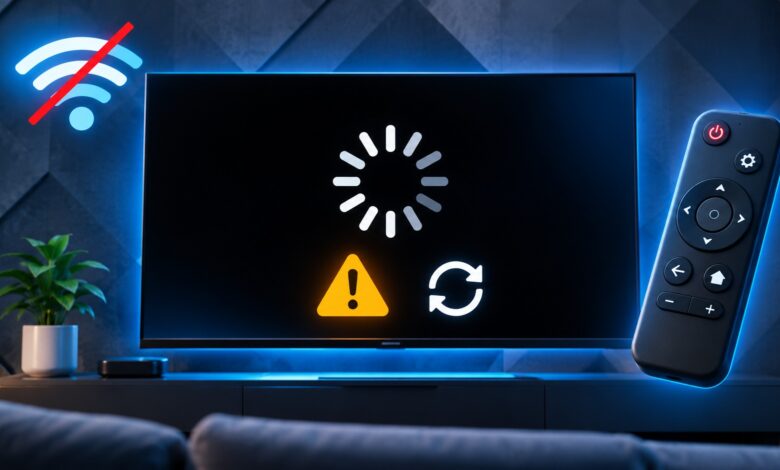
Few technical issues ruin match day faster than launching a live stream only to be met with a pitch-black display, an infinite loading wheel, or audio playing over a frozen frame. When streaming live events like Premier League matches, Sunday Night Football, or NASCAR on your smart TV, playback glitches usually point to video rendering conflicts, expired memory buffers, or digital rights management drops.
Why NBC Sports Shows a Black Screen or Buffers on Android TV
Understanding the technical cause behind playback failures helps prevent recurring video disruptions:
- HDCP & DRM Handshake Failures: High-bandwidth Digital Content Protection errors occur when the hardware handshake between your Android TV device, HDMI port, and television fails during encrypted live video decoding. This frequently causes the “black screen with audio” symptom.
- Android System WebView & Rendering Glitches: The NBC Sports app relies on underlying system components to render video player layers. If these background system apps are outdated or corrupted, the video player engine freezes.
- Fragmented App Memory Cache: Streaming live events generates large volumes of temporary segment files. Over time, corrupted cache files trigger infinite buffering loops or instant app crashes upon launching a stream.
- Bandwidth Throttling & CDN Latency: High-definition live sports streams require sustained network throughput. Wi-Fi packet loss, local router congestion, or Internet Service Provider throttling during peak viewing hours can drop video resolution to zero.
- Low System Storage: Android TV OS requires at least 1 GB of free internal storage to buffer live video feeds smoothly. When local storage drops below critical thresholds, background video buffer processes collapse.
Step-by-Step Fixes: Resolving Black Screen & Buffering Issues
During performance benchmarks across popular streaming hardware, the following step-by-step diagnostic workflows consistently resolved playback freezes and screen render errors.
Solution 1: Force Stop NBC Sports & Clear App Cache
Why it works: Wipes corrupted stream buffer files and releases stuck video memory without deleting your account credentials or logging you out of your TV provider.
- Turn on your television and navigate to the Settings gear icon on your Android TV or Google TV home screen.
- Select Apps, then click See all apps.
- Scroll down and select NBC Sports from your installed apps list.
- Click Force Stop and confirm by selecting OK.
- Scroll down within the same menu and select Clear Cache.
- Return to your home screen, relaunch the NBC Sports app, and select your live stream.
(If clearing cache inadvertently forces a sign-in prompt, follow our complete guide on how to activate NBC Sports on Android TV via nbcsports.com/activate).
Solution 2: Update Android System WebView & Google Play Services
Why it works: Repairs the internal rendering engines used by Android TV applications to display media player interfaces and web-based video modules.
- Launch the Google Play Store from your Android TV apps menu.
- Select your profile icon or search bar at the top of the screen.
- Search for Android System WebView.
- If an update is available, click Update and wait for installation to finish.
- Repeat the search for Google Play Services and apply any pending updates.
- Restart your Android TV device before testing the NBC Sports app again.
Solution 3: Toggle Display Resolution & Disable Match Frame Rate
Why it works: High-definition DRM video streams can fail when auto-frame-rate switching or 4K/60Hz display modes create a hardware synchronization conflict with your TV panel.
- Open your Android TV or Google TV Settings menu.
- Select Display & Sound, then click Resolution (or Display Mode).
- Temporarily change your display output from 4K / 60Hz down to 1080p / 60Hz.
- Navigate to Match Content Frame Rate settings (if present on your device) and toggle it to Off.
- Relaunch the NBC Sports stream. Once video playback stabilizes, you can toggle back to your preferred display resolution.
Solution 4: Perform a Hard Power Cycle & Network Reset
Why it works: Cold rebooting your hardware completely flushes system RAM, clears temporary OS hardware locks, and establishes a clean connection to live Content Delivery Networks (CDNs).
- Cold Reboot TV Device: Unplug your Android TV or Google TV device directly from the wall power outlet. Leave it completely unpowered for 60 seconds (pressing the power button on the device once while unplugged helps discharge residual power).
- Reboot Network Gear: Unplug your Wi-Fi router and modem for 30 seconds before reconnecting them.
- Plug your TV device back in and launch your connection settings.
- Verify your internet speed. Live HD sports streaming requires a minimum stable speed of 10–15 Mbps, while 4K feeds require 25 Mbps.
Solution 5: Reinstall NBC Sports & Free Up System Storage
If the NBC Sports app continues crashing to the home screen, low internal storage is likely preventing the app from allocating space for live video segment buffers.
- Open Settings > Apps > See all apps > NBC Sports.
- Click Uninstall and confirm by selecting OK.
- Open Settings > System > Storage > Internal shared storage.
- Check your available space. If free space is below 1 GB, uninstall unused apps or clear cached data across other heavy streaming apps.
- Open the Google Play Store, reinstall the NBC Sports app fresh, and complete the authentication process.
Upcoming Guide: Stuck on code validation during sign-in after reinstalling? Read our guide on [fixing NBC Sports activation code errors and timeouts].
Alternative Fallback Options
If live playback remains unreadable on the native app due to ongoing server outages, use these tested alternative streaming methods:
- Chromecast Built-in Workaround: Open the NBC Sports app on your Android or iOS mobile device (connected to the same Wi-Fi network). Tap the Cast icon on the mobile video player and select your Android TV to project the stream cleanly.
- Peacock TV App Alternative: For events broadcast simultaneously on Peacock, launch the native Peacock TV app on your Google TV/Android TV to bypass NBC Sports player glitches entirely.
- Manual APK Sideloading: (If the app continues to crash completely due to a buggy app store release, consider [sideloading the NBC Sports APK on Android TV]).
Frequently Asked Questions (FAQs)
Why do I hear audio but see a black screen on NBC Sports Android TV?
Audio playing behind a black screen indicates an HDCP / DRM decoding failure. Your device is processing the audio track normally, but the encrypted video player layer failed to handshake with your TV. Unplugging your HDMI cable, restarting your TV, or changing display resolution settings from 4K to 1080p will usually resolve this error.
What network speed do I need to stop NBC Sports buffering on Google TV?
You need a minimum sustained download speed of 5 Mbps for standard video feeds, 10–15 Mbps for 1080p HD live sports, and 25 Mbps for 4K live broadcasts. Using a wired Ethernet connection or a 5 GHz Wi-Fi band minimizes buffer spikes caused by wireless signal interference.
Will clearing cache log me out of my TV provider account?
No. Selecting Clear Cache only wipes temporary video fragments and app memory files, keeping your account credentials intact. However, clicking Clear Data will reset the application completely, requiring you to re-enter your activation code.