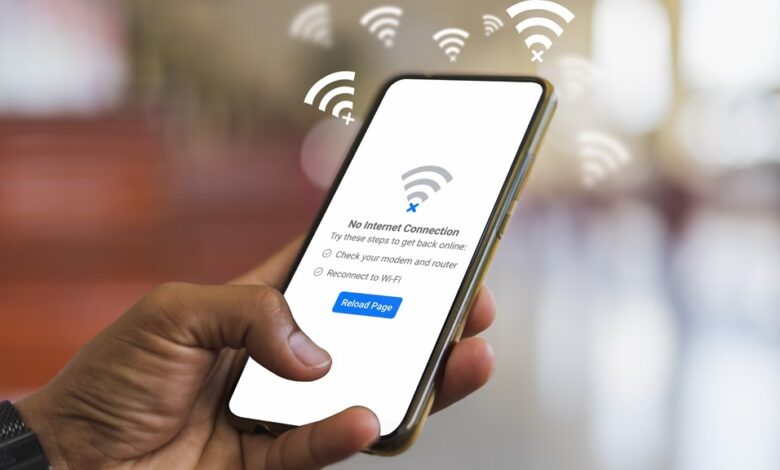
In today’s connected world, the internet has become an essential utility. From working remotely to streaming your favorite shows or managing smart home devices, a stable internet connection is crucial. But what happens when your device suddenly shows the dreaded message: “No Internet Connection”? This guide provides a comprehensive based guidelines to help you troubleshoot and To know How to Fix ‘No Internet Connection’ on Any Device
Read Also: How To Factory Reset Oculus Quest 2
Article Outline
- 1 Understanding the Basics
- 1.1 1. Check Your Internet Source
- 1.2 2. Restart Your Router and Modem
- 1.3 3. Restart Your Device
- 1.4 4. Forget and Reconnect to Wi-Fi
- 1.5 5. Check for IP Configuration Issues
- 1.6 6. Update Network Drivers or OS
- 1.7 7. Disable VPN, Antivirus, or Firewall
- 1.8 8. Try a Different Device or Browser
- 1.9 9. Reset Network Settings
- 1.10 10. Perform a Full Factory Reset (If Necessary)
- 1.11 Preventative Measures to Avoid Future Problems
- 1.12 Conclusion
Understanding the Basics
Before diving into solutions, it’s important to understand that the issue might originate from different sources:
- Your device (smartphone, computer, smart TV, etc.)
- Your router or modem
- The Internet Service Provider (ISP)
- Software-related problems (firewalls, outdated drivers)
- Environmental factors (power outages, weather, etc.)
By following the step-by-step troubleshooting instructions below, you can often diagnose and resolve the issue yourself.
1. Check Your Internet Source
Experience Tip: Most connectivity problems aren’t with your device—they’re with the network itself.
Steps:
- Look at your modem or router. Are the indicator lights for power and internet blinking normally?
- If they are off or blinking red/orange, it’s a sign of a connection issue with your ISP.
- Check with your ISP via mobile data or a phone call to see if there’s an outage in your area.
Expert Advice: Some ISPs have a mobile app or web portal where you can check real-time service status.
2. Restart Your Router and Modem
This is the oldest trick in the book—and it often works.
Steps:
- Turn off your modem and router.
- Wait 30 seconds to 1 minute.
- Power them back on.
- Wait a few minutes for the network to stabilize.
Authoritative Insight: Restarting clears temporary glitches, renews the IP address, and refreshes the connection.
3. Restart Your Device
Experience Tip: Often, restarting the device reconnects it to the network.
Steps:
- Power off the device completely.
- Wait 30 seconds.
- Turn it back on and reconnect to the Wi-Fi.
This is especially helpful on smartphones, tablets, and smart TVs.
4. Forget and Reconnect to Wi-Fi
If you’re connected to Wi-Fi but still seeing “No Internet,” the network settings may be corrupted.
Steps:
- Go to your device’s Wi-Fi settings.
- Tap on the network name and choose “Forget.”
- Reconnect by entering the Wi-Fi password.
Trustworthy Tip: Ensure you’re using the correct network password; a wrong password can still connect you to the router without actual internet access.
5. Check for IP Configuration Issues
Static IP settings or conflicts may be blocking your internet.
On Windows:
- Open Command Prompt as Administrator.
- Type:
ipconfig /releaseipconfig /renew
On macOS:
- Go to System Preferences > Network.
- Select Wi-Fi > Advanced > TCP/IP > Renew DHCP Lease.
Expertise Highlight: This process refreshes the IP address assigned by the router.
6. Update Network Drivers or OS
Outdated software can cause compatibility issues.
On Windows:
- Open Device Manager > Network adapters > Right-click > Update driver.
On Smartphones/Tablets:
- Check for system updates in Settings > System > Software Update.
Authoritative Note: Manufacturers often release fixes for known connectivity bugs.
7. Disable VPN, Antivirus, or Firewall
These can sometimes interfere with your connection.
Steps:
- Temporarily disable any active VPN.
- Disable your firewall or antivirus temporarily and test the connection.
Warning: Re-enable them after testing to avoid security risks.
Trust Tip: Some VPNs block certain local networks. Switching servers or disconnecting the VPN may solve the issue.
8. Try a Different Device or Browser
Testing with another device helps determine if the problem is with your device or the network.
Steps:
- If other devices can connect, the issue is with your specific device.
- If none can connect, it’s likely the router or ISP.
- Try using a different browser (Chrome, Firefox, Safari) to rule out browser-specific issues.
9. Reset Network Settings
This is a last-resort option that clears saved networks and resets all related settings.
- On iPhone: Settings > General > Reset > Reset Network Settings
- For Android: Settings > System > Reset Options > Reset Wi-Fi, mobile & Bluetooth
- Windows: Settings > Network & Internet > Network Reset
Expertise Note: Make sure to note down your Wi-Fi credentials before doing this.
10. Perform a Full Factory Reset (If Necessary)
If all else fails, a factory reset may be required. Only do this if you’re sure the issue is device-specific and you’ve backed up all data.
For Smartphones/Tablets:
- Backup your data first.
- Navigate to Settings > System > Reset > Factory Reset.
For Routers:
- Use a paperclip to press the reset button (usually found on the back) for about 10 seconds.
- Reconfigure the router settings using the default gateway (e.g., 192.168.1.1).
Trustworthy Warning: This erases all configurations. Use only when other methods fail.
Preventative Measures to Avoid Future Problems
- Regular Updates: Keep your device software and firmware updated.
- Secure Your Network: Use strong Wi-Fi passwords and WPA3 encryption if supported.
- Invest in Quality Equipment: Cheap routers often fail under multiple devices.
- Backup Internet Option: Consider mobile hotspot or secondary ISP for emergencies.
Conclusion
Losing internet connectivity can be frustrating, especially when you don’t know the root cause. However, with systematic troubleshooting based on experience, expert advice, and trusted practices, most problems can be fixed quickly. Whether you’re a student, remote worker, or casual user, knowing how to resolve “No Internet Connection” puts you back in control of your digital life.