Best Laptop Screen Extender Options for Portable Multi-Display Productivity

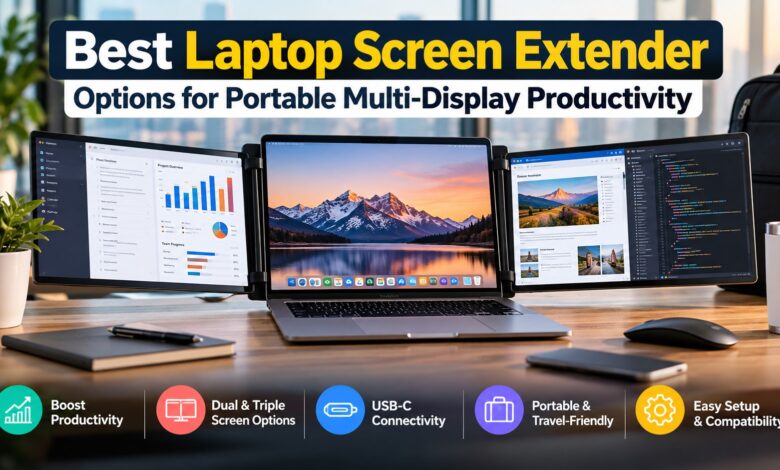
A laptop is convenient until you run out of screen space. Switching between spreadsheets, browser tabs, emails, research documents, and video calls can slow down even a capable computer. A laptop screen extender gives you additional display space without requiring a full desktop setup, making it useful for office work, remote jobs, studying, coding, and content creation.
The challenge is choosing the right model. Some extenders attach directly to your laptop lid, while others work as independent portable monitors that sit beside your computer. They differ in screen size, connectivity, weight, power requirements, compatibility, and how easily they fit into a laptop bag.
This guide explains how laptop screen extenders work, what to check before buying, how dual-screen and triple-screen designs compare, and how to troubleshoot common setup problems. Whether you’re looking for a portable monitor for laptop productivity or a compact upgrade for your MacBook Pro, the goal is to help you choose a setup that works with your actual workflow rather than paying for features you won’t use.
What is a Laptop Screen Extender and How Does It Work?
A laptop screen extender is an additional display designed to expand the usable screen space of a laptop. Depending on the design, it can attach to the laptop’s lid, rest on a stand beside the computer, or connect through a mounting system that supports one or more extra screens.
Once connected and configured, the extra display can show a separate desktop. You might keep an Excel workbook open on the laptop screen, reference documents on the second display, and email or a communication app on a third. This reduces the need to constantly minimize windows or switch between applications.
Most laptop screen extenders use one or more of these connection methods:
- USB-C: Can carry video, data, and power through one cable when the laptop’s USB-C port supports the required features.
- HDMI: Carries video and audio, but the monitor usually needs a separate power source.
- USB-A: Some monitors use USB-A for power or data, while video may require compatible DisplayLink software or a specific driver.
DisplayLink: A graphics technology that can deliver display output through supported USB connections using software. It can be useful when native display outputs are limited, but compatibility and performance depend on the hardware and operating system.
One important distinction: a USB-C connector does not automatically mean a laptop can output video. The port must support DisplayPort Alternate Mode, Thunderbolt, USB4 display functionality, or another video solution explicitly supported by the monitor.
Plug-and-Play USB-C Connectivity
USB-C is often the easiest connection option because a compatible laptop and monitor may need only one cable for video and power. Fewer cables mean a cleaner desk and less time spent untangling accessories when moving between home, office, and client locations.
Before buying, check three things:
- Video output: Does your laptop’s USB-C port support external displays?
- Power delivery: Can the laptop supply enough power to the monitor, or will you need a separate charger?
- Display support: Can your laptop run the additional screen at its advertised resolution and refresh rate while keeping your existing display active?
For example, a USB-C portable monitor for laptop use may work perfectly with one notebook but require HDMI and a separate USB power cable with another. The connector can look identical even when the capabilities differ.
If you’re purchasing a monitor for a MacBook, also check how many external displays your specific Mac model supports. MacBook Air and MacBook Pro capabilities vary by generation and chip, so don’t assume that a dual-screen attachment will automatically provide two independent external desktops.
Attachable Clip-On vs. Standalone Portable Monitors
The biggest design decision is whether you want a screen attached to your laptop or a separate monitor that sits beside it.

Best for: mobile professionals, frequent travelers, and compact workstations.

Standalone portable monitor
This is a separate display with its own stand, cover, or kickstand. You can position it at a more comfortable height or angle and use it with a laptop, tablet, compatible phone, or another video source.
Best for: flexible desk arrangements, presentations, and use beyond a single laptop.
A clip-on design saves desk space, but it adds weight to the laptop lid and can be less stable on thin or flexible displays. A standalone monitor takes up more room in your bag, yet it generally offers more freedom when adjusting screen position.
If you regularly work at a fixed desk, a standalone monitor may be the more comfortable choice. If you move between offices or workstations throughout the week, an attachable dual screen can make more sense.
Key Factors to Consider Before Buying a Screen Extender
The best laptop screen extender isn’t necessarily the one with the largest display or the most screens. It is the one that matches your laptop’s capabilities, your work habits, and the amount of weight you’re willing to carry.
Use these factors to narrow down your options before comparing brands or prices.
1. Screen Size and Resolution
Most portable monitors fall in the 13- to 16-inch range, although smaller and larger models are available. A screen around 14 to 16 inches can provide a useful balance between workspace and portability.
Resolution matters just as much as physical size. A larger screen with a low resolution may show less content than you expect, while a high-resolution panel can make text and interface elements look sharper.
| Specification | What to look for |
|---|---|
| Screen size | 13–16 inches for a practical portable setup |
| Resolution | 1920 × 1080 for everyday productivity; higher resolutions for more detail |
| Panel type | IPS for generally good viewing angles and consistent colors |
| Brightness | Around 300 nits or higher is helpful in brighter environments |
| Refresh rate | 60Hz is sufficient for most office work |
| Aspect ratio | 16:9 is common; 16:10 offers extra vertical workspace |
These are practical starting points, not strict requirements. A higher resolution can be useful for design work, but it may also increase power consumption and require scaling adjustments to keep text readable.
2. Laptop Compatibility
Compatibility should be your first technical check, especially if you want a dual screen laptop attachment that mounts directly to the lid.
Confirm the following before ordering:
- Your laptop’s screen size falls within the extender’s supported range.
- The mounting system is compatible with your lid thickness and bezel design.
- The laptop lid can support the extender’s weight without excessive flex.
- Your operating system supports the required display configuration.
- Your graphics hardware can drive the additional displays at their intended resolutions.
Pay special attention to thin laptops, convertibles, and models with unusually narrow bezels. A mounting clip that works on one notebook may obstruct another laptop’s webcam, interfere with the hinge, or fail to grip securely.
MacBook owners: Check the exact model and chip generation. If you’re searching for a portable monitor for MacBook Pro, verify external display limits and any DisplayLink software requirements rather than relying on a generic claim that the monitor is Mac-compatible.
3. Connectivity and Power Requirements
A portable display can be simple to connect, but the cable arrangement varies by model.
Some screens accept video and power through a single USB-C connection. Others require HDMI for video and a separate USB cable or adapter for power. Models using DisplayLink may need software installation and permissions before the display works.
Before buying, look for:
- USB-C video input or HDMI input, as appropriate for your laptop.
- A clearly stated power requirement.
- Included cables and any necessary adapters.
- Compatibility with your operating system and graphics setup.
- A supported solution for driving multiple external screens simultaneously.
One overlooked issue is power draw. Two attached displays can consume considerably more power than a single portable monitor. If your laptop’s USB-C port cannot supply sufficient power, you may need an external adapter, and your battery may drain faster when running the whole setup unplugged.
4. Weight, Thickness, and Portability
A laptop screen extender can make a lightweight laptop much heavier to carry. This matters more than many buyers realize when commuting or traveling.
Consider the combined weight of your laptop, extender, cables, power adapter, mouse, and other accessories. Also check the packed dimensions: a screen may be thin but still require a wide protective case.
If you travel frequently, read the specifications for both the extender and its carrying case. Our Laptop Bag Sizing & Buying Guide: Get the Right Fit First Try can help you assess whether your current bag has enough room for the expanded setup.
For regular travel, a single portable monitor may offer a better balance than a triple-screen assembly. For a mostly stationary home office, the extra weight may be a reasonable trade-off.
5. Build Quality and Mounting Stability
The mounting mechanism is just as important as the panel itself. An extender that wobbles whenever you type can become distracting, especially during long work sessions.
Check the quality of the clips, hinges, support arms, and adjustable stands. Look for protective contact points where the attachment touches the laptop and confirm that the manufacturer specifies a compatible range of laptop sizes and thicknesses.
For clip-on models, avoid assuming that a strong-looking mount is suitable for every lid. The additional leverage can put strain on a thin display lid or hinge. If the manufacturer does not clearly explain the supported laptop designs, a standalone monitor is the safer choice.
6. Color Accuracy and Viewing Angles
Office users can usually get by with a standard IPS display, but designers, photographers, and video editors should pay closer attention to color performance.
Look for published sRGB coverage, brightness uniformity, and viewing-angle specifications. If color matching matters, check whether the extender can be calibrated and whether its color profile behaves consistently with your laptop’s main display.
Don’t expect two screens to look identical just because they have the same resolution. Differences in panel technology, brightness, color temperature, and factory calibration can make white backgrounds look warmer on one screen than the other.
7. Price and Warranty
Compare the full cost rather than the headline price. A cheaper extender may need extra cables, an adapter, a power supply, or software that complicates setup.
Before purchasing, check:
- Warranty duration and coverage.
- Return policy and dead-pixel terms.
- Availability of replacement cables and mounting accessories.
- Local after-sales support.
- Whether the listed price includes the necessary power adapter.
If you’re buying from an overseas seller in Pakistan or another market where returns are expensive, compatibility and warranty checks are particularly important. A slightly more expensive model with reliable local support may be better value than a low-cost unit that is difficult to replace.
Top Types of Laptop Screen Extenders
Laptop screen extenders generally fall into two categories: multi-screen attachments and standalone portable monitors. Your ideal choice depends on how many applications you need visible at once and how much flexibility you want from the setup.
Dual-Screen Attachments

This arrangement works well when your daily routine involves several applications that benefit from staying visible simultaneously.
For example, an accounts professional might keep an accounting system on the main screen, a spreadsheet on one side, and email or supporting documents on the other. A content writer could use one screen for a draft, another for research, and the laptop display for a content management system.
Advantages
- Three visible work areas without a permanent desktop monitor setup.
- Less window switching when working across several applications.
- Compact folding designs are available.
- Useful for remote work, spreadsheets, coding, research, and writing.
Disadvantages
- More weight and bulk on or around the laptop.
- Additional power consumption.
- Potential stability issues on thin laptop lids.
- Possible compatibility restrictions with particular laptop sizes and operating systems.
The biggest trade-off is ergonomics. Side screens can sit at awkward angles or heights, forcing you to turn your neck repeatedly. Choose a model with adjustable positioning, and avoid placing frequently used content on a screen that requires constant head rotation.
Triple-Screen Extenders

This is attractive for users who keep many windows open throughout the day. A developer might reserve separate screens for code, documentation, a browser, and a test environment. Financial analysts and data-heavy professionals may also benefit from seeing several reports at once.
However, a larger number of panels doesn’t automatically mean better productivity. The laptop must support the required display outputs, and the extender may rely on a combination of native video connections and DisplayLink technology.
Advantages
- Large combined workspace for complex tasks.
- Multiple documents and applications can remain visible.
- Can reduce repeated switching between windows.
- Useful for workflows that genuinely need several simultaneous views.
Disadvantages
- Heavier and bulkier than most single- or dual-screen options.
- More complicated cable and power requirements.
- Greater demands on graphics and display connectivity.
- Wider setups can be awkward on small desks, trains, or airplanes.
For most people, a dual-screen setup is the sensible starting point. Consider a triple-screen extender only if you can identify a regular task that benefits from the additional display and your laptop can support the complete configuration.
Dual-Screen vs. Triple-Screen vs. Standalone Monitor
| Feature | Dual-screen attachment | Triple-screen extender | Standalone portable monitor |
|---|---|---|---|
| Typical setup | Two added displays | Three added displays, depending on design | One added display |
| Portability | Moderate | Lower | Often high |
| Desk space | Moderate | High | Flexible |
| Setup complexity | Moderate | Moderate to high | Usually low |
| Mounting concerns | Can stress laptop lid | Greater weight and leverage concerns | Minimal lid stress |
| Best use | Everyday multitasking | Display-heavy professional workflows | Travel, flexible positioning, presentations |
These are general tendencies rather than guarantees. Actual weight, connection requirements, and setup time depend on the specific model.
Which Type Is Best for Your Work?

Office work, accounting, and spreadsheets
Choose a dual-screen attachment or one portable monitor. Keep your main accounting application and frequently referenced documents visible.

Programming and technical work
Consider dual or triple displays if you regularly use a code editor, browser, terminal, and documentation at the same time.

Travel and hybrid work
A standalone portable monitor is often the more flexible option because it can be positioned independently and used with other compatible devices.
How to Set Up a Laptop Screen Extender (Step-by-Step)
Setting up a laptop screen extender is usually straightforward, but the exact process depends on the connection type and your operating system. Follow these steps to avoid common problems with power, display detection, and screen arrangement.

Step 1: Check your laptop’s ports
Identify the available USB-C, HDMI, Thunderbolt, or USB4 ports. Confirm that the chosen port supports the monitor’s video input requirements rather than assuming every USB-C port carries video.

If you’re using an attachable model, follow the manufacturer’s mounting instructions. Check that the clips are secure, the hinges move freely, and the attachment does not press against the laptop panel or obstruct the webcam.

Step 3: Connect the cables and power
Connect the video cable and provide external power if necessary. If the screen stays black, check the monitor’s input selection and make sure you’re using a compatible video connection.

Step 4: Configure your display settings
Choose the extended desktop option rather than mirroring if you want independent workspaces. Arrange the displays to match their physical positions and select the appropriate resolution and scaling.

Step 5: Test the complete setup
Move the mouse between displays, open different applications on each screen, and check text readability. Test the setup on battery power as well if you intend to work away from a power outlet.
Windows Display Settings
On Windows 11 or Windows 10:
- Right-click the desktop and open Display settings.
- Select Identify to see which number corresponds to each display.
- Under the multiple-display options, choose Extend these displays.
- Drag the display rectangles to match the physical arrangement.
- Select each screen individually to adjust its resolution, scaling, and orientation.
You can also press Windows + P to access display projection options quickly. Choose Extend when you want separate workspaces rather than the same image on every screen.
If Windows detects only one external display, check the laptop’s hardware specifications and graphics output limits. Some laptops support fewer simultaneous displays than the number of ports might suggest.
macOS Display Settings
On a MacBook:
- Open System Settings and select Displays.
- Check whether the external monitor appears.
- Configure the display arrangement and resolution.
- Select the appropriate extended display or mirroring arrangement.
- If a display isn’t detected, check the cable, adapter, software requirements, and supported external-display limit for your Mac model.
Some USB monitors require DisplayLink Manager or another manufacturer-provided application. Install software only from a trusted source and review any required macOS permissions.
For a portable monitor for MacBook Pro, confirm whether the specific model supports native USB-C video or requires a separate driver. This can make a substantial difference in setup convenience.
Common Issues & How to Fix Them
Even a well-designed laptop screen extender can run into connection or configuration problems. The following checks can help you identify the cause without immediately assuming the monitor is defective.
| Problem | Likely cause | What to do |
|---|---|---|
| Screen remains black | Incorrect input, incompatible port, or insufficient power | Check the input source, cable, and power supply |
| Monitor isn’t detected | Unsupported video output or driver issue | Test another compatible port and install required software |
| Both screens show the same content | Display mirroring is enabled | Select Extend in display settings |
| Image looks blurry | Incorrect resolution or scaling | Select the recommended resolution and adjust scaling |
| Screen flickers or disconnects | Weak connection, inadequate power, or cable issue | Reseat the cable and use a suitable power source |
| Laptop battery drains quickly | Multiple displays draw additional power | Connect external power or reduce display brightness |
| Text appears too small | High resolution or unsuitable scaling | Increase scaling in the operating system |
| Extender feels unstable | Poor fit or excessive weight on the laptop lid | Recheck mounting compatibility or switch to a standalone monitor |
Problem 1: The Screen Extender Is Not Detected
Start with the simplest checks. Confirm that the monitor is switched on, the correct input is selected, and the cable is firmly connected at both ends.
Next, test another compatible cable or port. If the display uses DisplayLink, verify that its software is installed and running correctly.
If you’re using a dual-screen attachment, test each added display separately. This helps establish whether the issue affects one panel, the mounting unit’s connection system, or the laptop’s display output.
Problem 2: The Display Flickers or Keeps Disconnecting
Intermittent disconnections often point to a loose cable, insufficient power, a faulty adapter, or an unsupported connection arrangement.
Try connecting the monitor to its recommended power supply, shortening the cable path, and removing unnecessary hubs or adapters. If the problem continues, check for firmware, driver, or operating-system updates from the appropriate manufacturer.
Avoid repeatedly bending or pulling a cable to keep the screen working. A damaged connector can turn an intermittent problem into a permanent one.
Problem 3: The Picture Looks Blurry or Text Is Difficult to Read
Check the display’s native resolution first. Windows and macOS may choose scaling settings that make interface elements too small or too large, especially when the laptop and extender have different pixel densities.
If text looks blurry, select the recommended resolution and adjust scaling rather than lowering resolution immediately. On Windows, also check ClearType text settings if lettering looks uneven.
Problem 4: The Laptop Gets Hot or Battery Life Drops
Extra displays require power, and certain graphics or display technologies add processing overhead. The impact varies with the laptop, screen brightness, resolution, connection method, and workload.
Reduce brightness when full output isn’t necessary, close resource-intensive applications, and use the manufacturer’s recommended power configuration. If you’re running multiple screens throughout a workday, keeping the laptop connected to a suitable charger may be more practical than relying on battery power.
Problem 5: The Extender Is Uncomfortable to Use
A setup can work perfectly and still be uncomfortable after several hours. Side-mounted displays positioned too far away may cause repeated neck rotation, while low screens can encourage poor posture.
Keep frequently used content close to your normal viewing direction, adjust the screen angles, and use a stable desk or stand. If the side panels remain awkward even after adjustment, a standalone monitor or a separate monitor arm may be a better long-term solution.
Protect Your Laptop and Displays
Before transporting the setup, disconnect cables and fold or remove the panels according to the manufacturer’s instructions. Don’t force a hinge or place pressure on an attached screen when closing your laptop.
Clean the display with a suitable microfiber cloth and follow the panel manufacturer’s cleaning guidance. Our guide, How to Clean a Laptop Screen Safely (Without Causing Damage), explains how to remove fingerprints without damaging the screen coating.
If your laptop’s built-in display is already damaged, an extender is not a substitute for repairing the original panel. See our Laptop Screen Repair Guide: How to Fix a Broken Laptop Screen and How to Fix a Broken Laptop Screen for troubleshooting and repair guidance.
If the display has failed and you need to protect your files before arranging a repair, our Guide to Back Up Data from a Broken Laptop Screen may also be useful.
Editorial note: The internal links above use descriptive URL slugs as suggested destinations. Confirm the live URLs in WordPress before publishing, particularly if your existing articles use different slugs.
Frequently Asked Questions (FAQ)
1. What is the best laptop screen extender for everyday work?
For most office users, a dual-screen attachment or a single portable monitor is a sensible starting point. Choose a dual-screen model if you regularly need three visible work areas, or a standalone monitor if flexibility, easy positioning, and use with other devices matter more.
The best laptop screen extender for you will depend on compatibility, screen quality, portability, and how much additional workspace your daily tasks actually require.
2. Does a laptop screen extender work with every laptop?
No. Compatibility depends on the laptop’s screen size, mounting design, video outputs, graphics hardware, and operating system.
Check the extender manufacturer’s compatibility list and confirm the laptop’s supported external-display configuration before ordering. This is especially important for thin laptops, MacBooks, and models with limited video output support.
3. Can I use a laptop screen extender without USB-C?
Yes, some models work through HDMI with a separate power connection, while others use USB-A with compatible display technology such as DisplayLink.
However, not every USB port supports video output. Check the exact connection requirements for the monitor and your laptop rather than relying on the connector’s shape alone.
4. Is a USB-C portable monitor for laptop use better than HDMI?
Neither connection is universally better. USB-C can offer a cleaner single-cable setup when the laptop supports video over USB-C and provides sufficient power.
HDMI is useful when the laptop has a compatible video output, but the monitor may need a second cable for power. Your laptop’s ports and the monitor’s supported inputs should determine the choice.
5. Can I use a portable monitor for MacBook Pro?
Yes, many portable monitors work with compatible MacBook Pro models. A monitor with native USB-C video input is often convenient, while some USB-based displays require additional software.
Check your MacBook Pro’s exact chip generation, supported number of external displays, resolution limits, and the monitor’s macOS compatibility before purchasing. A product advertised as Mac-compatible does not necessarily support every MacBook configuration.
6. Does a dual-screen laptop attachment need additional software?
Not always. Models using native video connections generally rely on the operating system’s built-in display settings.
Other models use DisplayLink or proprietary software to drive the additional screens. Check the product documentation for installation requirements and support for your operating system version.
7. Can a laptop screen extender damage my laptop?
A compatible, properly mounted extender should not normally damage a laptop. However, an attachment that is too heavy or incorrectly fitted can put additional strain on the display lid and hinges.
Check the supported laptop size and mounting limits, avoid forcing the clips, and remove the attachment if you notice excessive lid flex or unusual hinge resistance.
8. Is a triple-screen extender worth buying?
It can be worthwhile for people who regularly work across several applications, such as software developers, analysts, and professionals managing multiple documents or dashboards.
For everyday browsing, email, and basic office work, the added weight, setup complexity, and power consumption may outweigh the benefits. A dual-screen setup is often a more practical compromise.
9. Does a laptop screen extender improve productivity?
It can reduce window switching and make reference material easier to access, particularly when several applications must remain visible simultaneously.
The benefit depends on the work being done. A second screen is useful when you frequently compare documents or move information between applications, but it won’t automatically make every task faster.
10. Can I use a laptop screen extender while traveling?
Yes, provided the combined setup fits your bag and can be mounted securely at your destination. A lightweight standalone portable monitor is often easier to position on different desks, while folding attachments can save space in some travel setups.
Check the total packed dimensions, protective case, power requirements, and the weight added to your laptop bag before taking the setup on regular trips.
Final Verdict: Is a Laptop Screen Extender Worth It?
A laptop screen extender is worth considering if you regularly switch between applications, compare documents, work with spreadsheets, or need a more flexible workstation without carrying a full desktop monitor.
The right choice depends on your priorities:
- Choose a dual-screen attachment if you want multiple visible workspaces in a compact, laptop-centered setup.
- Choose a triple-screen extender if your workflow genuinely benefits from several additional displays and your laptop supports them.
- Choose a standalone portable monitor if you value flexible positioning, easier compatibility across devices, and less strain on your laptop lid.
Before purchasing, verify the display specifications, video connections, power requirements, mounting compatibility, warranty, and total carrying weight. These practical details matter more than marketing claims about how many screens a device can provide. For most professionals, a good-quality second display is the best place to start. It offers a meaningful increase in workspace without adding unnecessary bulk, and you can always expand the setup later if your work demands it.
The best laptop screen extender isn’t the one with the most impressive specification sheet. It’s the one that connects reliably, fits your laptop, remains comfortable to use, and gives you enough screen space to work more efficiently wherever you need it.