Guide to Back Up Data from a Broken Laptop Screen
Guide to back up data from a broken laptop screen without replacing the panel. Quick steps for displays, USB drives, and cloud backups.

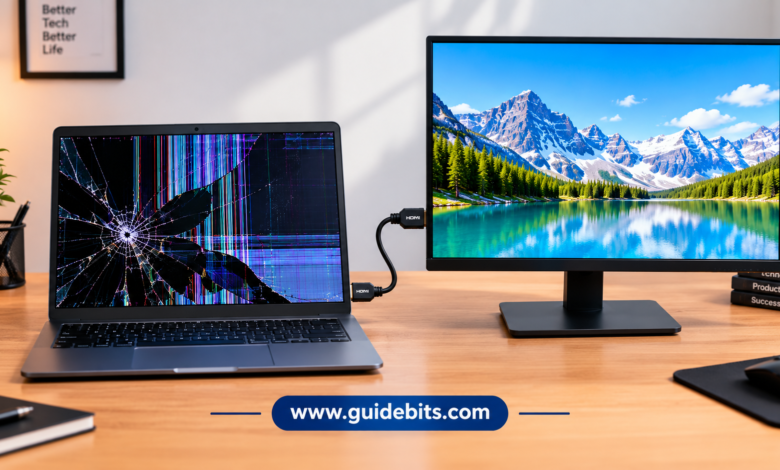
In a previous article of this series we inform you How to Fix a Broken Laptop Screen, but some times hearing the crunch of a cracked display or staring at a blank, ink-bleeding display panel is enough to trigger instant panic. Your work files, family photos, and browser bookmarks feel trapped behind a shattered layer of glass. However, here is the good news: a broken laptop screen almost never means your files are gone.
In over 90% of physical impact cases, your internal drive remains completely untouched. The computer inside is still running normally; it simply lost its primary window to show you what it is doing.
This guide walks you through every tested method to recover files from a broken laptop screen without paying hundreds of dollars for an immediate panel replacement. Follow these steps to secure your files first—then you can decide whether to repair or replace the machine.
⚡ Quick Answer Summary
If your laptop turns on but the display remains black or cracked:
Plug in an external monitor or TV using an HDMI, USB-C, or DisplayPort cable.
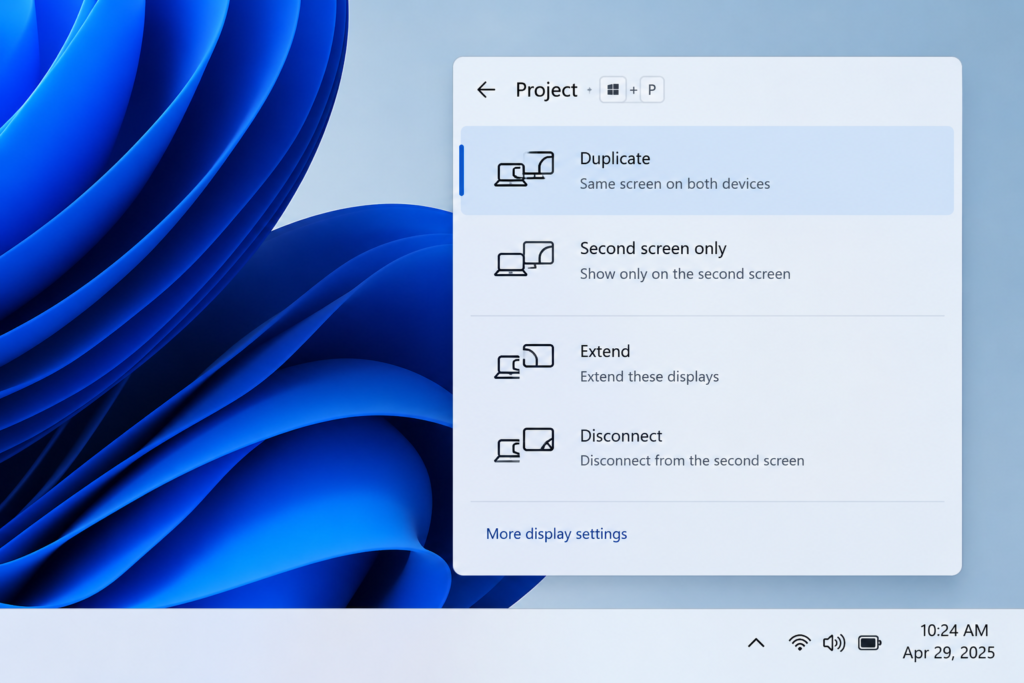
Press
Windows + P(orCmd + F1on Mac) to project your desktop to the external display.Connect a USB flash drive or external hard drive and drag your critical folders (Documents, Desktop, Downloads, Pictures) to safety.
If the laptop won’t display anything, remove the internal SSD/HDD and connect it to another computer using a $15 USB drive adapter.
Step 1: Quick Assessment — Is It Just the Display or a Dead Laptop?
Before spending time connecting cables, make sure your laptop hardware is actually booting up in the background. When a laptop screen is not working but still powers on, your recovery success rate is near 100%.
Check for these three signs of life:
- Power LED Indicators: Look at the power button, charging port, or side LEDs. Are they solid or blinking normally?
- Audio Cue: Listen closely when pressing the power button. Do you hear the fan spinning, the hard drive clicking, or the familiar Windows/macOS startup chime?
- The Flashlight Test: Shine a bright light or smartphone torch at a steep angle against the cracked glass. If you can faintly see the outlines of your desktop icons or login screen, your laptop is running fine—only the screen backlight or LCD matrix is damaged.
If your laptop shows no power lights, makes no sound, and feels completely cold, the motherboard or power delivery may have failed. In that case, jump straight to Method 4 (Drive Removal) below.
Method 1: Connect the Laptop to an External Monitor or TV
The fastest way to access files on a laptop with a cracked screen is by using a secondary display. This tricks your computer into using a desktop monitor or living room TV as its main screen.
+-------------------+        HDMI / USB-C        +-------------------+
|  Broken Laptop    | =========================> |  External Monitor |
| (Internal System) |                            |    or HDTV        |
+-------------------+                            +-------------------+
Required Tools
- An external computer monitor or HDTV.
- A display cable (HDMI output for a broken laptop display is most common, but USB-C/Thunderbolt or DisplayPort work as well).
- An external USB keyboard and mouse (optional, but helpful if your laptop lid needs to stay closed).
Step-by-Step Instructions
- Power Off the Laptop: Hold down the power button for 5 seconds until all lights turn off.
- Connect the Cable: Plug one end of your HDMI or USB-C cable into the laptop port and the other end into your external monitor or TV.
- Select the Input Source: Turn on the external display and set its input source (using the TV/monitor remote) to the matching HDMI channel (e.g., HDMI 1).
- Boot Up the Laptop: Press the laptop power button and wait 30 seconds for the operating system to load.
- Toggle the Display Shortcut:
- On Windows: Press the Windows Key + P simultaneously. Press the Down Arrow key once, then press Enter. This toggles Windows from “PC Screen Only” to “Duplicate” or “Second Screen Only” mode.
- On macOS: Press Command + F1 (or Fn + Command + F1) to toggle display mirroring. Alternatively, plug the MacBook into power, connect a USB mouse/keyboard, and close the laptop lid to trigger Clamshell Mode.
- On Linux: Most modern distributions (like Ubuntu) automatically mirror to an active HDMI connection upon boot.
If your display remains dark, disconnect all other peripherals, restart the machine, and press the display toggle key (Fn + F4, Fn + F7, or Fn + F8, depending on your laptop brand) to manually switch signal outputs.
Method 2: Transfer Files from a Broken Laptop to a USB Drive
Once your desktop is visible on the external screen, your priority shifts to securing your data. Transfer files from a broken laptop to USB storage so you have an isolated backup copy.
[ External Monitor ] <--- Shows Desktop
         |
  [ Broken Laptop ]
         |
         +---> Plug in External Drive / Flash Drive
         |
         +---> Copy "Users/[YourName]" Folder ---> Paste into USB Drive
Step-by-Step Instructions for Back Up Data from a Broken Laptop Screen
- Connect Your Storage Device: Insert a USB flash drive or external hard drive with enough free space to hold your personal files.
- Open File Explorer (Windows) or Finder (Mac): Press
Win + Eon Windows to open File Explorer. - Locate Your User Profile: Navigate to
This PC > Local Disk (C:) > Users > [Your Username]. - Copy Primary Data Folders: Highlight and copy the core user directories:
- Documents (work files, spreadsheets, tax returns)
- Desktop (shortcuts and files saved directly to your desktop)
- Downloads (recent installer packages, PDFs, receipts)
- Pictures / Videos (family photos and personal media)
- Paste to External Drive: Open your connected USB drive, create a folder named “Laptop Backup [Date]”, and paste your files inside.
- Safely Eject: Once the transfer bar reaches 100%, right-click the USB icon in your system tray and select Eject before unplugging the drive.
Method 3: Use Cloud Syncing for Instant File Recovery
If you don’t have an external hard drive nearby, you can use cloud backup for Back Up Data from a Broken Laptop Screen directly over your home Wi-Fi network while connected to your external monitor.

Recommended Cloud Platforms For Backup Data
- Microsoft OneDrive: Built natively into Windows 11 and Windows 10.
- Google Drive / Google Photos: Ideal for cross-platform access via any web browser.
- iCloud Drive: Built directly into macOS Finder.
- Dropbox: A reliable third-party option for fast drag-and-drop folder uploads.
How to Upload Your Data
- Open your web browser on the external screen and log into your cloud account.
- Open your local File Explorer window alongside the browser.
- Select your essential folders and drag them straight into the browser window.
- Tip for Limited Connections: Upload high-priority spreadsheets, text documents, and work presentations first. Large video folders and photo archives can be uploaded later or moved via USB to save bandwidth.
Method 4: Fallback Option — Remove the Internal Drive (SSD/HDD)
If your laptop screen is smashed and the device refuses to output video via HDMI (perhaps due to a damaged motherboard graphics pipeline), you can still back up data from a damaged laptop.

Every laptop stores files on a physical storage module—either a 2.5-inch SATA hard drive/SSD or a slim M.2 NVMe solid-state drive. You can remove this drive and read it like a standard flash drive on another working computer.
+-------------------------+      Extract      +--------------------+
|  Broken Laptop          |  ===============> |  Internal SSD/HDD  |
| (No Video Output)       |                   +--------------------+
+-------------------------+                             |
                                                        | Inserts Into
                                                        v
+-------------------------+      USB Cable    +--------------------+
| Working Host Computer   | <=============== | USB Drive Enclosure|
| (Access Files Directly) |                   +--------------------+
Tools Needed
- A small precision screwdriver set.
- A compatible USB Drive Enclosure or SATA/NVMe to USB Adapter ($10 to $20 online).
Step-by-Step Instructions For Back Up Data from a Broken Laptop Screen
- Power Off & Unplug: Turn off the laptop, disconnect the charger, and remove the bottom panel screws.
- Disconnect the Battery: Unplug the internal battery connector from the motherboard to prevent electrical shorts.
- Remove the Storage Drive: Locate the M.2 SSD stick or 2.5-inch drive bay, unscrew the retaining bracket, and gently pull the drive free.
- Insert into Adapter: Place the drive into your purchased USB enclosure and close the casing.
- Plug into Another PC: Connect the enclosure’s USB cable into a working desktop or laptop.
- Gain Administrator Access: Open File Explorer on the healthy computer. Open the newly connected drive letter, navigate to the
Users/[Username]folder, and click Continue if Windows prompts for administrative permission to access the files.
Note: If your drive was encrypted using Windows BitLocker or macOS FileVault, you will be prompted to enter your 48-digit recovery key or account password before the host computer decrypts the files.
Quick Tools Comparison For Back Up Data from a Broken Laptop Screen
| Method | Tools Needed | Technical Difficulty | Time Required | Best Used When… |
| 1. External Monitor / TV | HDMI/USB-C Cable, TV or Monitor | 🟢 Easy | 5 – 10 Mins | Laptop powers on, but the internal panel is black/shattered. |
| 2. USB Storage Transfer | External HDD or USB Flash Drive | 🟢 Easy | 10 – 30 Mins | You need a physical offline copy of large media folders. |
| 3. Cloud Syncing | Internet Connection, Cloud Account | 🟢 Easy | 15 – 60 Mins | You want instant access to files on other mobile devices. |
| 4. SSD/HDD Drive Removal | Screwdriver, USB Drive Enclosure | 🔴 Advanced | 20 – 45 Mins | Laptop display and motherboard fail to show any external video. |